
Setting Content Type based on file extension
- English
- 日本語
In some situations you may want to override the content type that a backend returns. To do that you will need to create a new header object and an associated condition.
- Log in to the Fastly control panel.
- From the Home page, select the appropriate service. You can use the search box to search by ID, name, or domain.
- Click Edit configuration and then select the option to clone the active version.
- Click Content.
Click Create header.
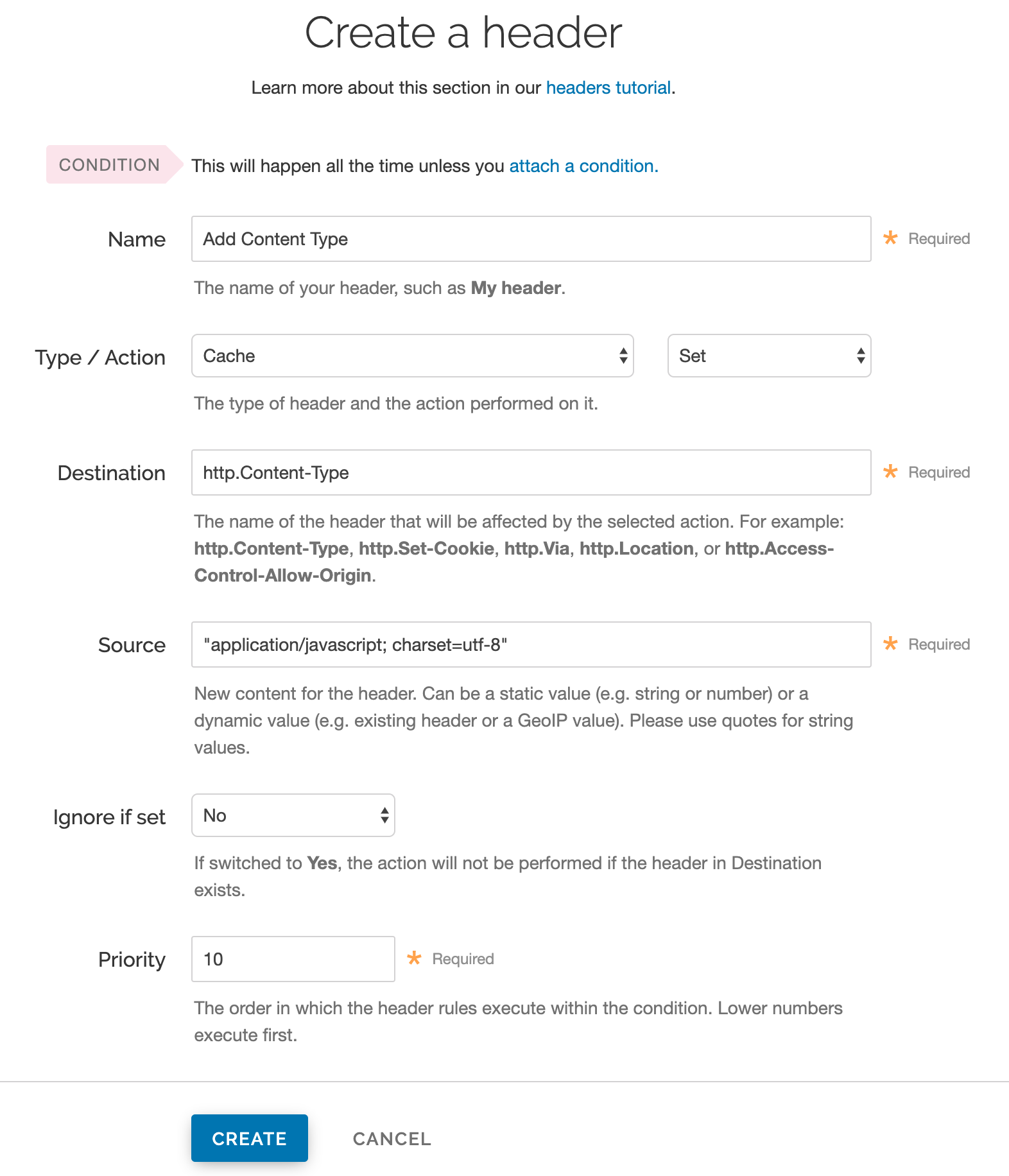
Fill out the Create a header fields as follows:
- In the Name field, enter an appropriate name (e.g.,
Add Content Type). - From the Type menu, select Cache, and from the Action menu, select Set.
- In the Destination field, enter
http.Content-Type. - In the Source field, enter the content type you want to match, such as
"application/javascript; charset=utf-8". - From the Ignore if set menu, select No.
- In the Priority field, enter
10.
- In the Name field, enter an appropriate name (e.g.,
Click Create.
Once you have created the header object, apply a condition. Otherwise, that particular object is applied to all requests.
Click Attach a condition to the right of the new header name.
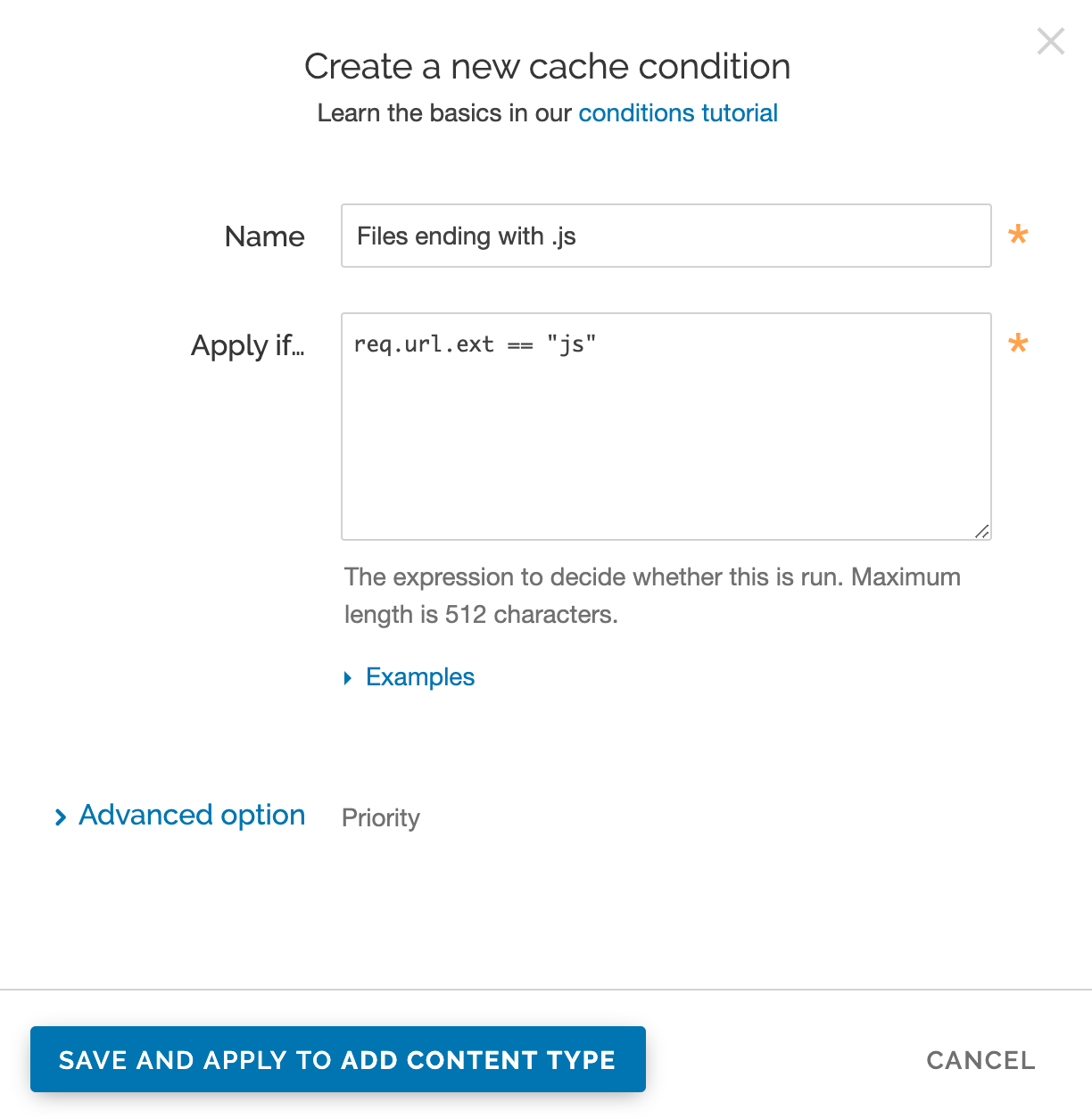
Fill out the Create a new cache condition fields as follows:
- In the Name field, enter a descriptive name, such as
Files ending with .js. - In the Apply if field, enter the condition that matches your request, such as
req.url.ext == "js"(to match the request for files ending in .js).
- In the Name field, enter a descriptive name, such as
Click Save and apply to. The new condition is created.
- From the Activate menu, select Activate on Production to deploy your configuration changes.
HINT: You may also be interested in our guide to Removing headers from backend response.
