Blocking requests with invalid challenge tokens
After successfully completing a client challenge, the client receives a token stored as a browser cookie. To validate this token on subsequent requests and block requests with invalid tokens, create two rules. The first rule should use the Verify token action to check if the web client solved a challenge on a previous request. This rule will add either the CHALLENGE-TOKEN-VALID or CHALLENGE-TOKEN-INVALID signal to the request. The second rule should use the Block action to block requests tagged with the CHALLENGE-TOKEN-INVALID signal.
Prerequisites
Before creating rules to handle requests from clients that failed a challenge, you must:
- enable client challenges on the service where you intend to use them.
- add a client challenge by creating a rule or modifying the HTML of the page where you'd like the challenge to be sent.
Protecting a POST endpoint example
Let's say that you want to protect a POST endpoint, in this case www.example.com/login, and that you've already added a challenge for the endpoint. To protect the endpoint, you need to configure two request rules that will:
- use token verification on a POST request, and
- configure signal blocking for requests that are invalid.
Be aware that this example uses:
- values (e.g., hostnames and paths) that may not be the same as those used by your particular web application.
- screenshots that were taken from the Next-Gen WAF control panel. While the values will be the same in the Fastly control panel, the Fastly control panel will look a little different.
Configuring token verification
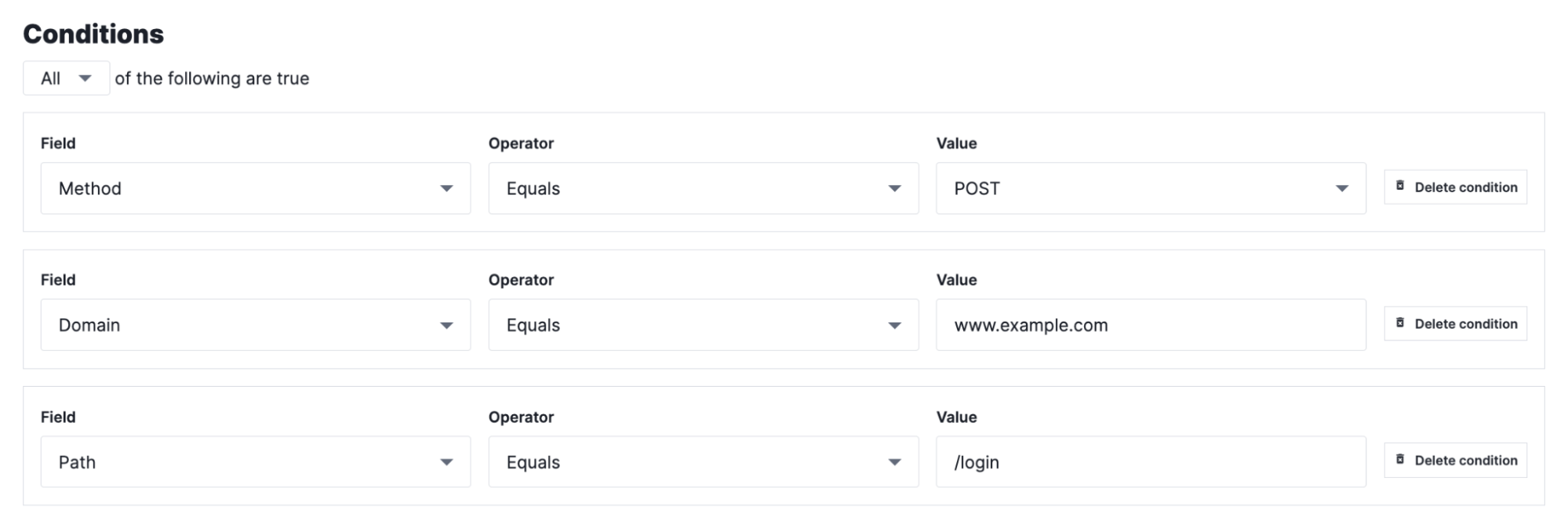
When configuring the token verification rule, create three conditions as follows, making sure to select All to require them to all be true:
| Condition | Field | Operator | Value |
|---|---|---|---|
| 1 | Method | Equals | POST |
| 2 | Domain | Equals | www.example.com |
| 3 | Path | Equals | /login |
In the Next-Gen WAF control panel, the settings would appear like this:
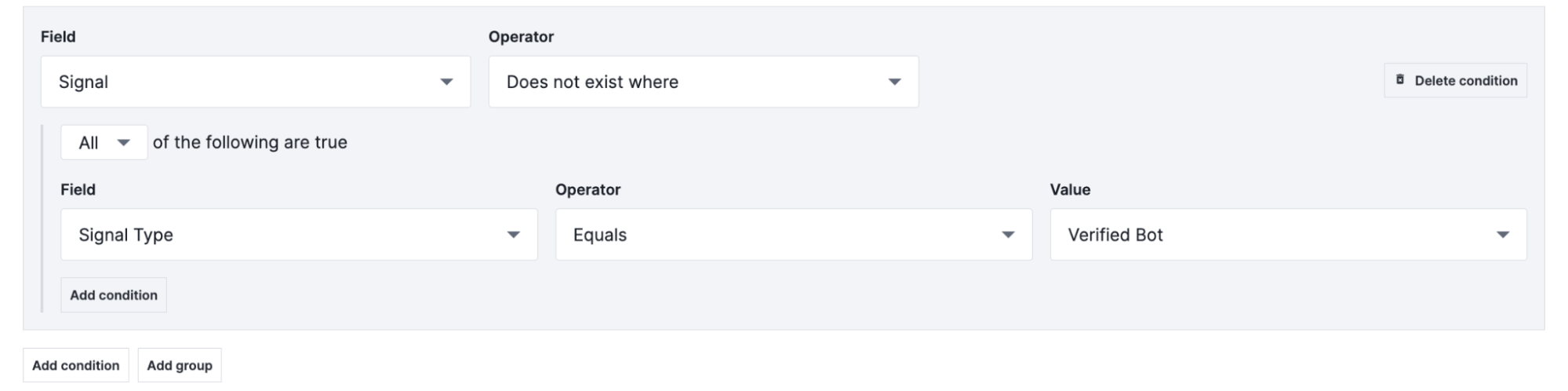
Then create a condition group for the challenge itself by clicking Add condition from below the first three conditions, and then specifying the settings of that condition as follows:
- From the first Field menu, select Signal.
- From the first Operator menu, select Does not exist where.
- Select All to specify that a request must meet every condition.
- From the second Field menu, select Signal Type.
- From the second Operator menu, select Equals.
- From the Value menu, select Verified Bot.
In the Next-Gen WAF control panel, the settings would appear like this:
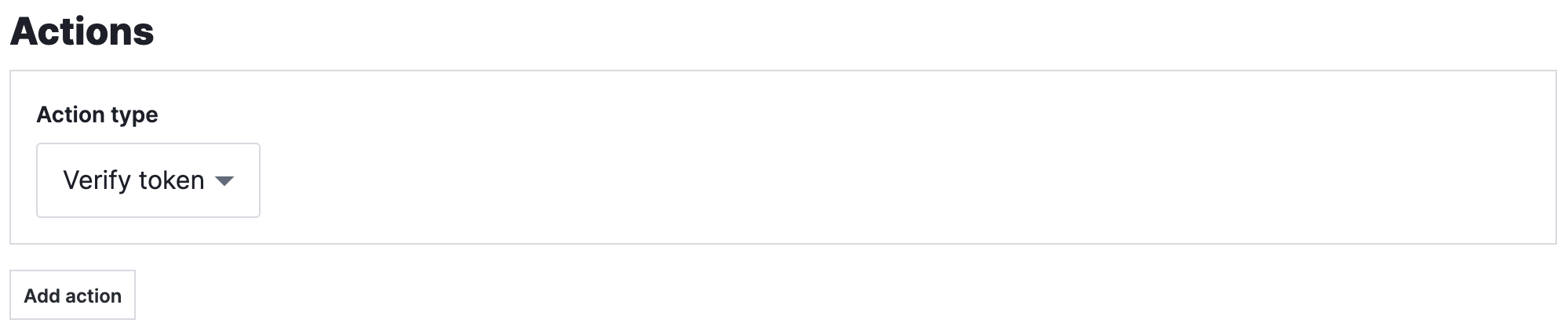
Then from the Action type menu, select Verify token to validate that the client has solved the browser challenge.
Configuring signal blocking
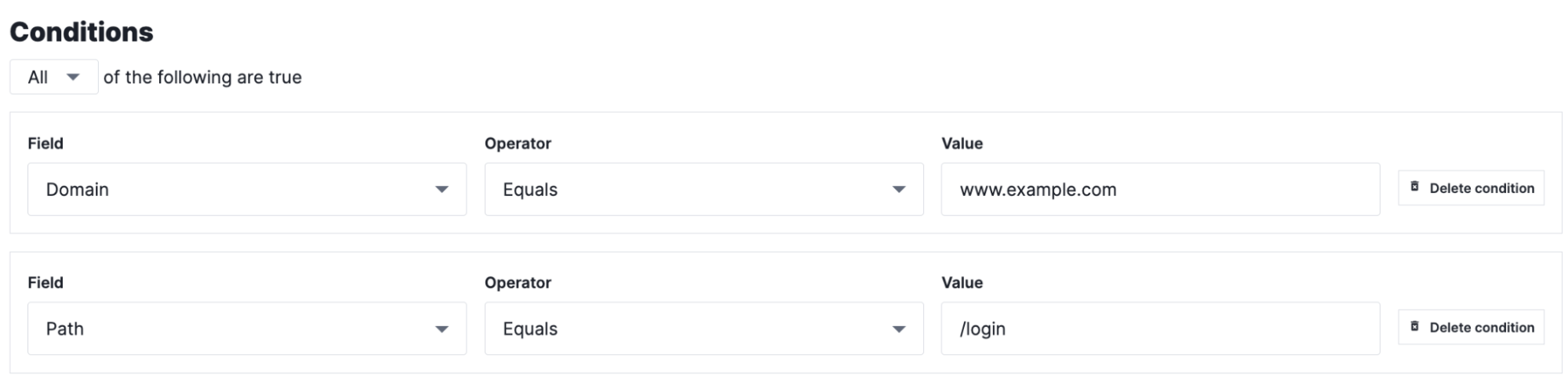
When configuring the signal blocking rule, create two conditions as follows, making sure to select All to require them to all be true:
| Condition | Field | Operator | Value |
|---|---|---|---|
| 1 | Domain | Equals | www.example.com |
| 2 | Path | Equals | /login |
In the Next-Gen WAF control panel, the settings would appear like this:
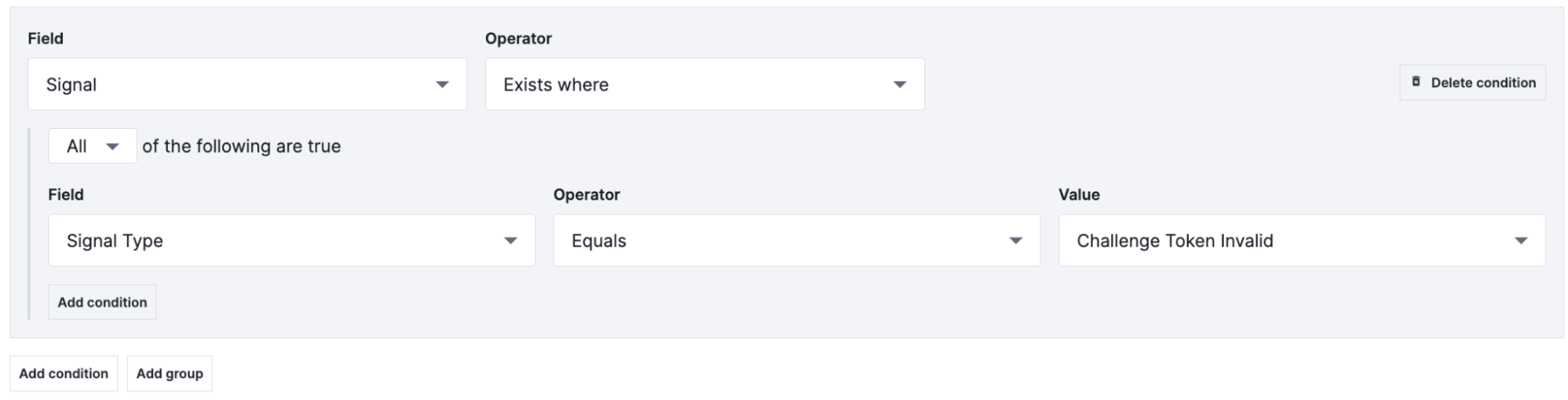
Then create a condition group for the challenge itself by clicking Add condition from below the first two conditions, and then specifying the settings of that condition as follows:
- From the first Field menu, select Signal.
- From the first Operator menu, select Exists where.
- Select All to specify that a request must meet every condition.
- From the second Field menu, select Signal Type.
- From the second Operator menu, select Equals.
- From the Value menu, select Challenge Token Invalid.
In the Next-Gen WAF control panel, the settings would appear like this:
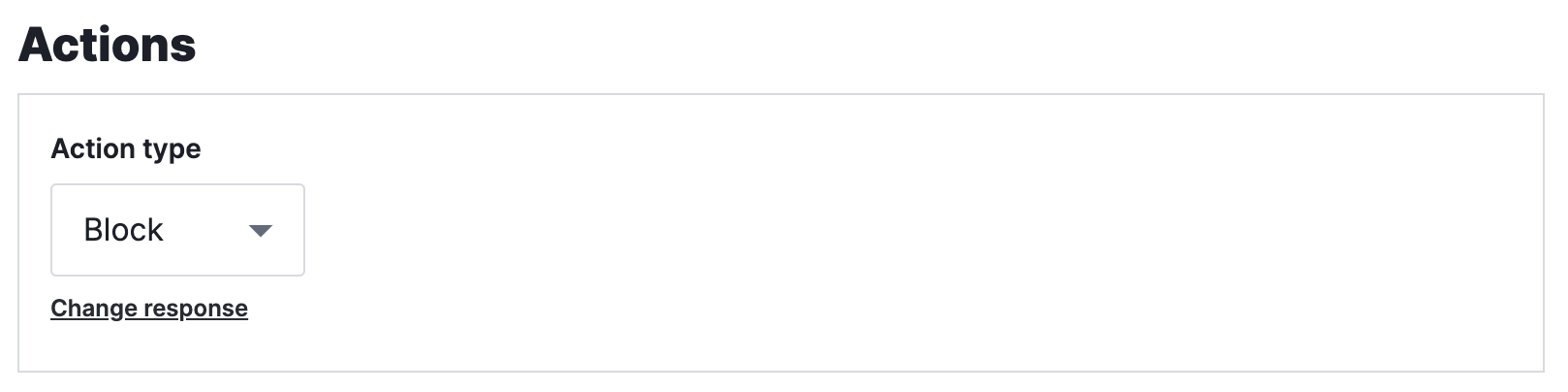
Finally, from the Action type menu, select Block. In the control panel, the setting would appear like this: